Your organization and its people
Overview
This tutorial covers inviting colleagues, choosing the right role for them, grouping people and companions into teams, and setting up the organization profile that makes Maggie's answers specific to your business.
Most of it needs owner or administrator rights.
Step 1 — Fill in the organization profile
Open Organization. Before adding anyone, complete the profile: what the company does, what it sells, who it sells to.
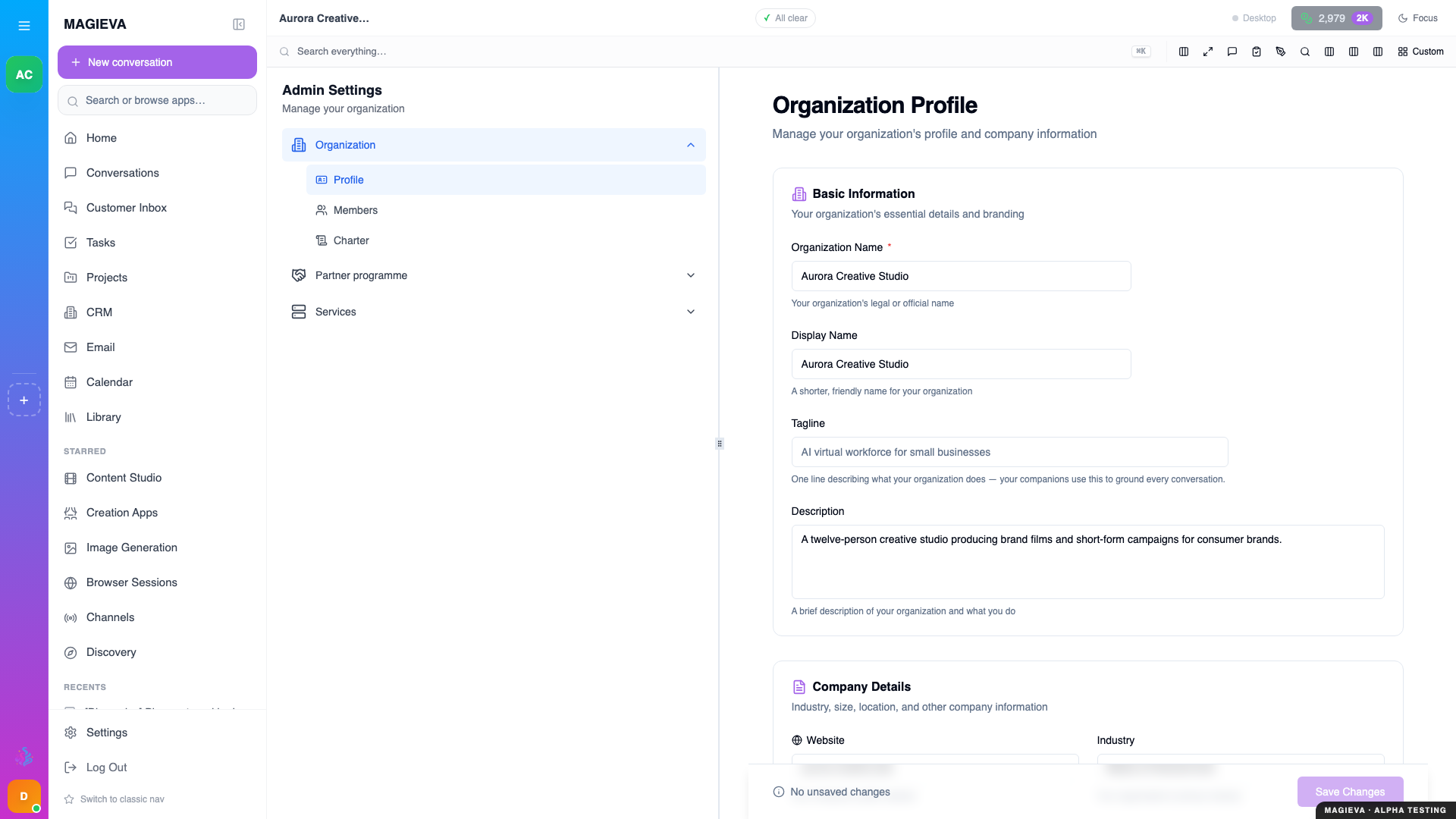
Captured 2026-09-14 on staging.magieva.com at /settings/admin/organization/profile, 1920×1080, in the documentation organization.
This is not decoration. Maggie reads it. An organization with a filled-in profile gets answers grounded in that business; an empty one gets generic advice that could apply to anybody. It is the single highest-leverage five minutes in the product.
Step 2 — Invite people
Go to Organization → Members and invite by email address.
They will receive an invitation, and on accepting they land directly in your organization rather than being asked to create one of their own.
Everyone in the organization — people and companions — is also listed on the Personnel page (open Groups from the sidebar), under People, Companions and All Personnel.
Step 3 — Choose the right role
Roles decide what someone can do at the organization level:
| Role | Use it for |
|---|---|
| Owner | Ultimate control, including billing and deleting the organization. Keep this to one or two people. |
| Admin | Day-to-day administration — members, settings, integrations — without full ownership. |
| Member | Standard access. The right default for employees. |
| Contractor | External people doing real work, with narrower reach than a member. |
| Guest | Minimal access, for someone who needs to see a specific thing. |
Two rules that save trouble later:
- More than one owner. A single owner who leaves, or loses their laptop, is an outage.
- Default to Member. It is far easier to raise someone than to work out, six months on, why a contractor could change billing.
Step 4 — Give people titles
Under Members, set each person's title. Maggie uses these — she will address and route work differently for a Head of Finance than for a summer intern, and she can answer "who should approve this?" correctly.
Step 5 — Group people and companions into teams
New in release 26.37
Live since September 10, 2026. Nested groups, companions as members, archive and restore, and the single Share dialog shipped with this release.
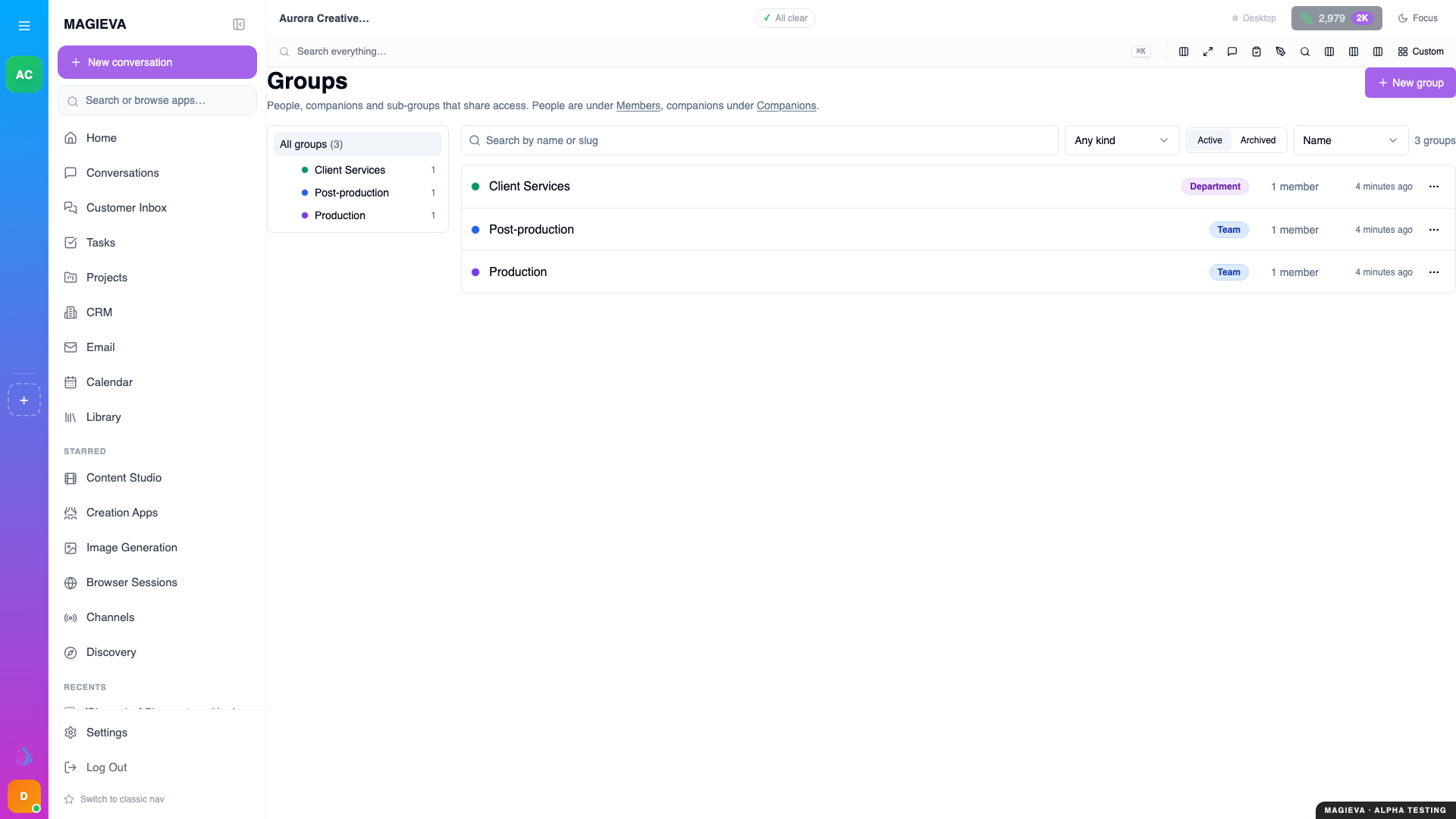
Captured 2026-09-14 on staging.magieva.com at /groups, 1920×1080, in the documentation organization.
On the Personnel page, the Groups tab lets you build the teams you actually work in: a Department containing Teams, a Project group that spans both. Groups nest, and access granted to a parent flows down.
Add companions to groups as well as people. A companion in the Finance group sees what Finance sees — and nothing else — which is usually exactly the scoping you want.
Once groups exist, most sharing becomes one step: share a project, a file or a conversation with the group, and everyone in it — now and later — has it. Mention a whole group in chat with @. Full walkthrough: Groups and sharing.
Step 6 — Set permissions on what matters
Organization → Permissions controls access to specific resources rather than the whole organization. Roles here are finer-grained — a person can be an editor of one project and only a viewer of another.
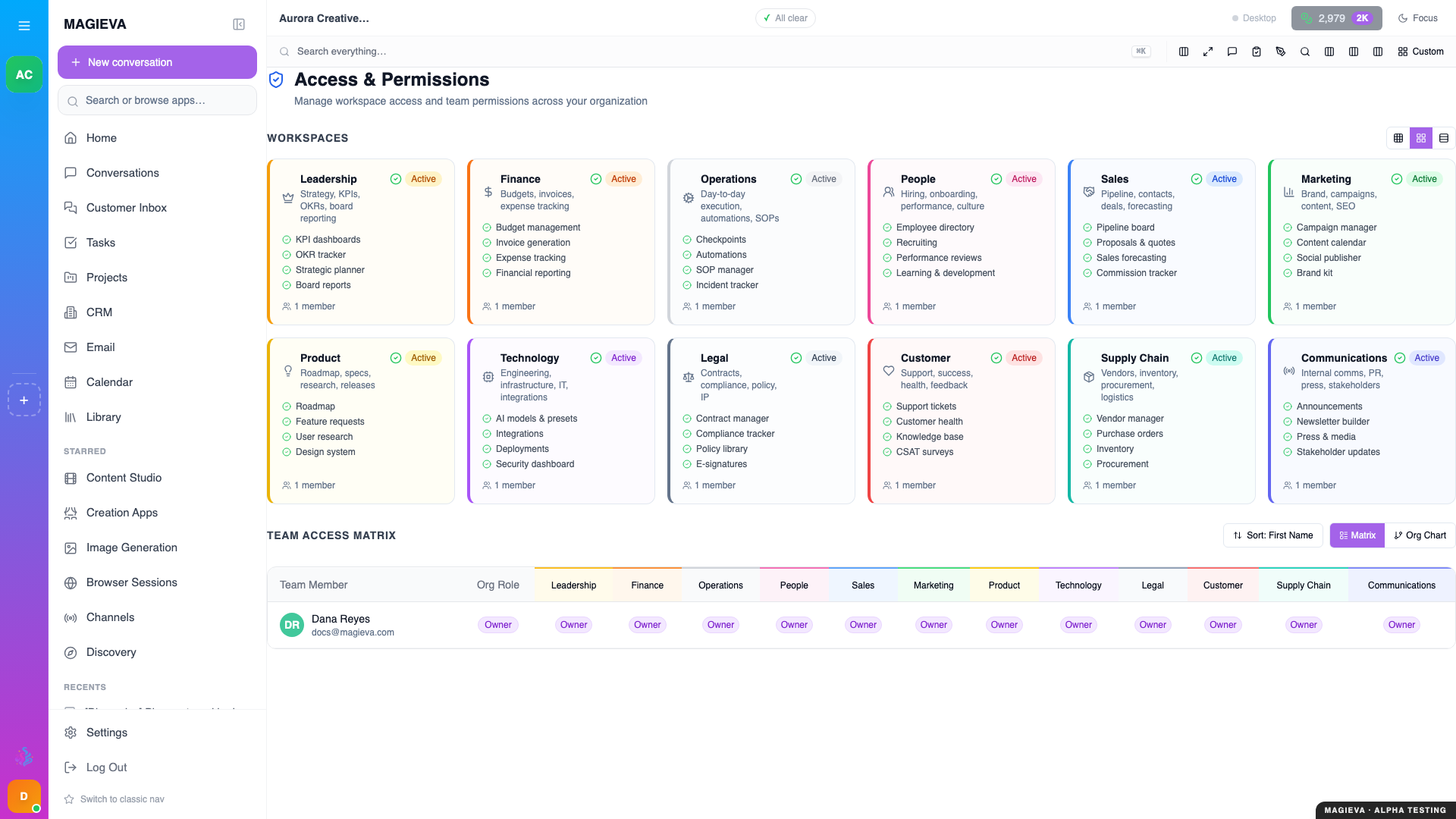
Captured 2026-09-14 on staging.magieva.com at /organization/permissions, 1920×1080, in the documentation organization.
Use organization roles for who someone is, groups for which team they are on, and per-item sharing for what this particular thing needs.
Step 7 — Understand the organization boundary
An organization is a hard boundary. Conversations, projects, tasks, files, and integrations live inside exactly one and never leak into another.
Consequences worth internalising:
- Someone in two organizations sees two entirely separate worlds, and must switch between them explicitly.
- Moving work between organizations means recreating it.
- The Intelligence Token balance is per organization.
Because of that last point, decide deliberately whether departments should be separate organizations (clean cost separation, no shared context) or one organization with groups and permissions (shared context, shared budget). Most companies want the second.
Step 8 — Review it periodically
Set a recurring reminder to check Members and Groups. Look for:
- People who have left but are still members.
- Contractors whose engagement ended, and time-boxed shares that should have expired.
- Anyone holding Owner who does not need it.
- Groups that no longer match how you work — archive them rather than leaving stale access in place.
- Integrations connected by someone who is gone — see Connecting your tools.
The Org Activity page (see Follow your organization's activity) is the quickest way to see who has been doing what since the last review.
Common mistakes
One owner. Covered above, and still the most common.
Everyone as Admin because it was easier at setup. It never gets tidied up.
Sharing person by person when a group would do it once and keep itself current.
An empty organization profile, followed by disappointment that Maggie's answers are generic.
Where to go next
- Groups and sharing — teams you can run, and one way to share.
- Understanding Intelligence Tokens — the shared budget your members draw on.
- How Magieva works — why the organization boundary is drawn where it is.