Getting started with Magieva
Overview
This tutorial walks you from your first sign-in to a working organization with a real piece of work completed. By the end you will have signed in, set up your organization, met Maggie, and watched her turn a request into a tracked task.
You need a Magieva account and a browser. Nothing else.
Step 1 — Sign in
Go to app.magieva.com and sign in. You can use email and password, or a supported single sign-on provider such as Google. Both routes land you in the same account — Magieva keeps one identity for you no matter how you sign in, so switching between them later never splits your history.
Step 2 — Choose or create an organization
Everything in Magieva belongs to an organization. An organization is the boundary for your data: conversations, projects, tasks, files, and integrations all live inside one, and nothing crosses between them.
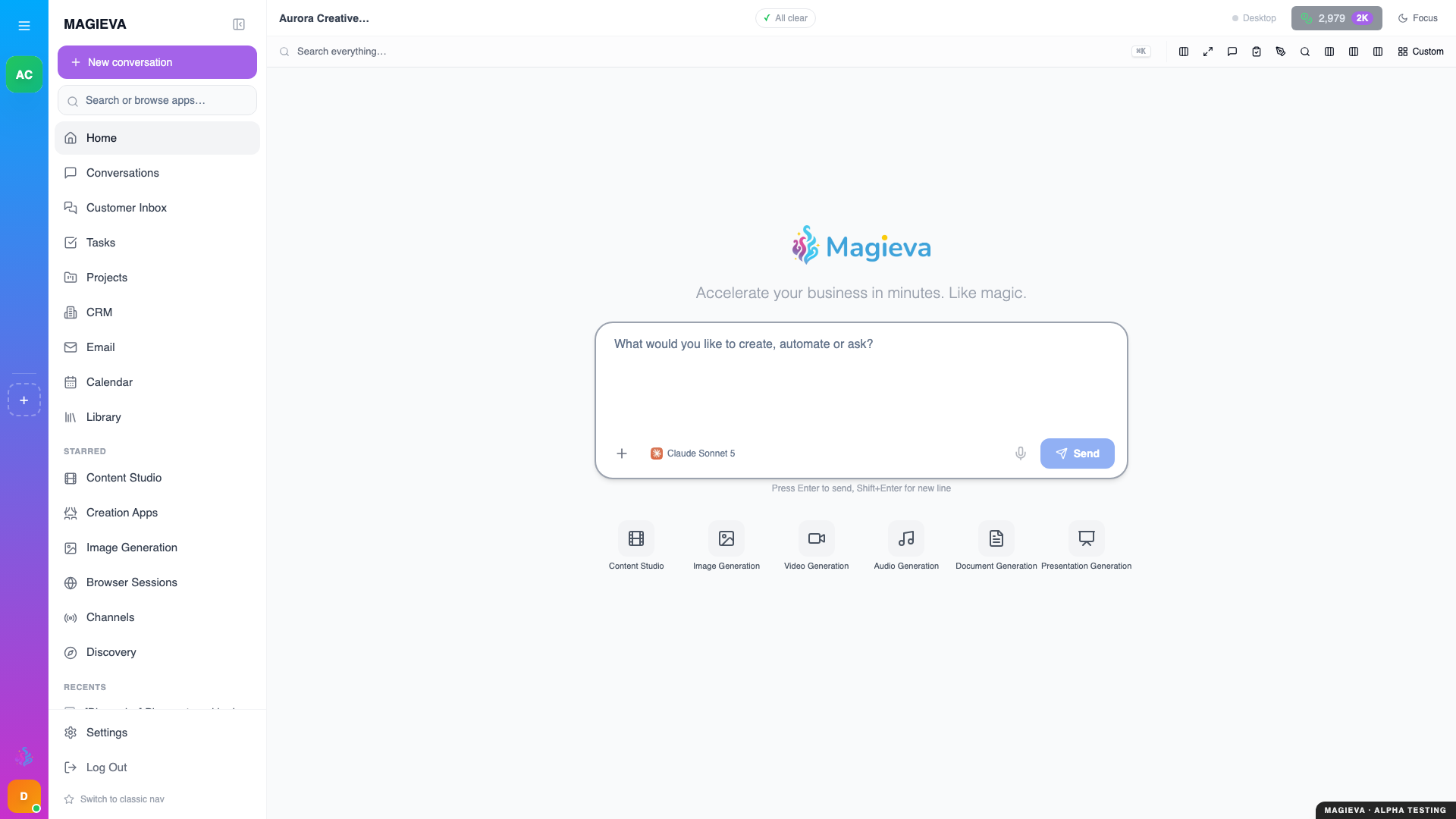
Captured 2026-09-14 on staging.magieva.com at /, 1920×1080, in the documentation organization.
On first sign-in you will either:
- Join an existing organization — if a colleague invited you, or if your email domain matches one already registered.
- Create a new one — give it a name and a website, and Magieva builds the workspace around it.
You can belong to several organizations and switch between them from the organization picker. Take a moment to confirm which one you are in before you start working — the picker is the single most common source of "where did my work go?".
Step 3 — Meet Maggie
The first time you enter a new organization, Maggie introduces herself and asks you a short series of questions. This is not a formality: her answers shape how she works with you afterwards.
She is establishing two things:
- What your organization does — so she can ground later answers in your actual business rather than generic advice.
- How you prefer to work — a short assessment that tunes her communication style to you.
Answer honestly and briefly. You can revisit and replay this later from Settings, and nothing here is permanent.
Step 4 — Have your first conversation
Open Home (or choose New conversation in the sidebar — it lands you on the same composer).
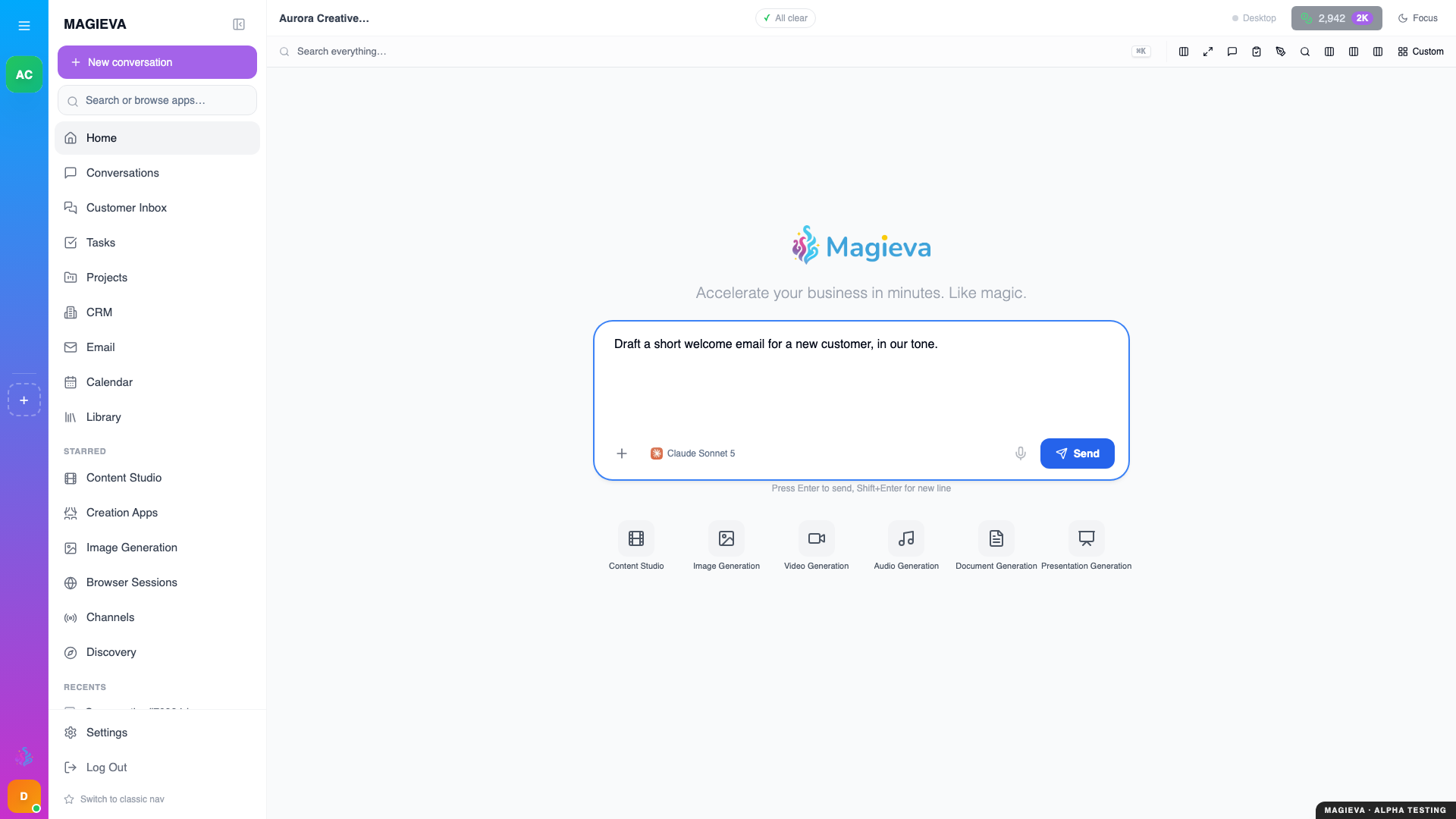
Captured 2026-09-14 on staging.magieva.com at /home, 1920×1080, in the documentation organization.
Ask for something real. A good first request is one that has an obvious output:
Draft a short welcome email for a new customer, in our tone.
Maggie will answer in the conversation. Notice two things about the reply:
- She writes as part of your organization, not as a generic assistant.
- Where she used a source — a document you uploaded, a connected tool — she cites it, so you can check her work.
Step 5 — Watch a request become a task
Now ask for something that takes real work:
Research our three biggest competitors and summarise how they price.
This is more than a chat reply, so Maggie spawns a task. You will see it appear in the activity indicator at the top of the screen and in Tasks in the sidebar.
Open Tasks and click into it. You get:
- The current phase, and how far through it is.
- A running log of what has happened.
- The output when it finishes.
The task keeps running whether or not you stay on the page. Close the tab, come back later, and it will be waiting.
Step 6 — Give Maggie something to work from
Maggie is far more useful when she knows your material. Open Resources & Knowledge and upload a few documents — a pitch deck, a price list, a policy, whatever is genuinely representative.
Once they are processed, ask her something that can only be answered from them:
What does our refund policy say about damaged goods?
Her answer should now cite the document you uploaded. This is the core loop of Magieva: the more of your real material she can see, the more her answers are about your business rather than the world in general.
Where to go next
- Talking to Maggie — how to ask well, and what she can actually do.
- Projects and tasks — organising work that takes more than one step.
- Connecting your tools — bringing email, calendar, and the rest into the same place.