Connecting your tools
Overview
Maggie is most useful when she can see the systems you already work in. This tutorial connects an external account, confirms it worked, and shows how to keep connections healthy.
Some of these steps need administrator rights in your organization — and in the tool you are connecting.
Step 1 — Open Integrations
Go to Integrations in the sidebar. This lists what you can connect and the current state of anything already connected.
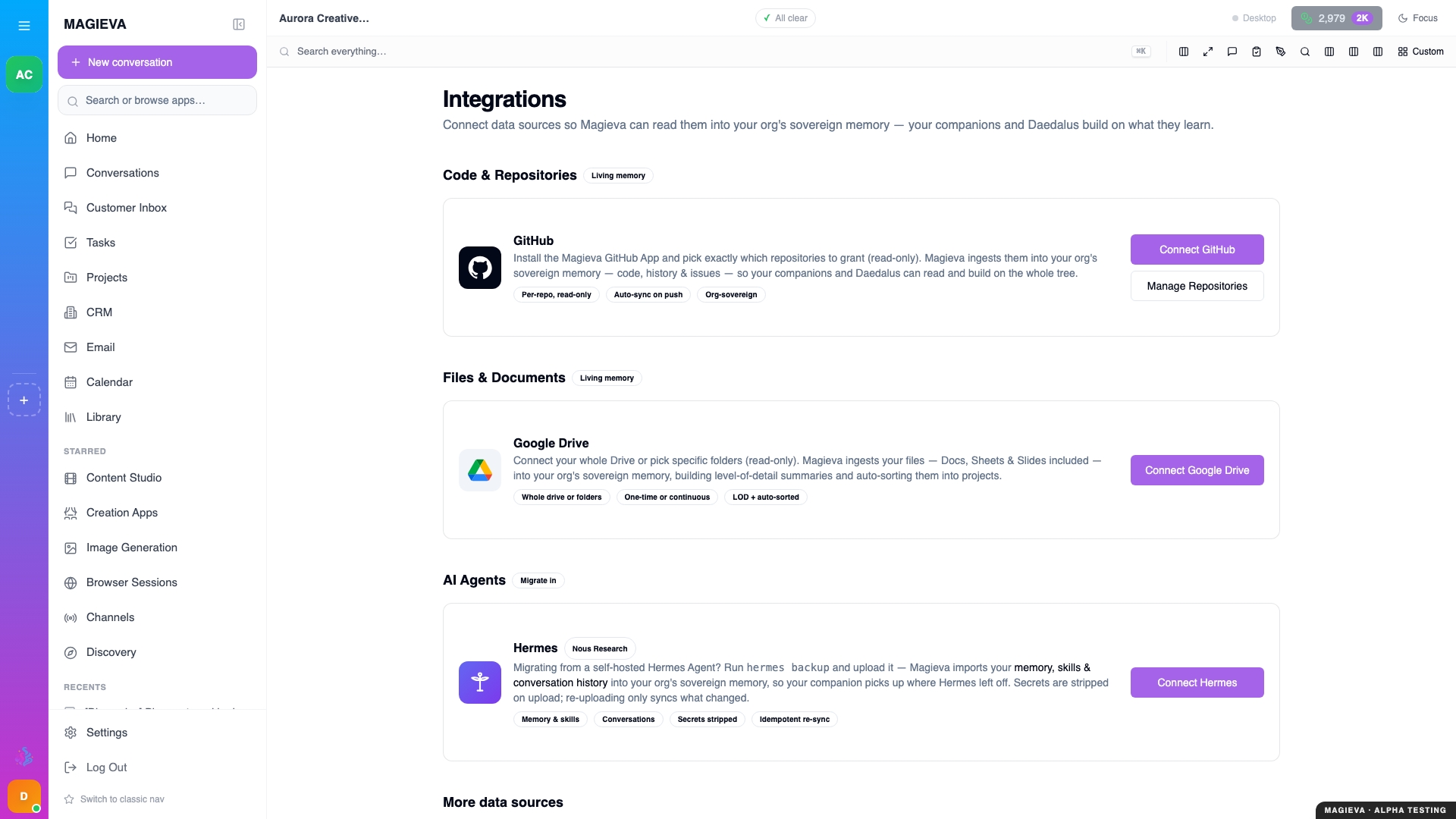
Captured 2026-09-14 on staging.magieva.com at /integrations, 1920×1080, in the documentation organization.
The available catalogue depends on your plan and on what your administrator has enabled, so treat what you see here — not this page — as the authoritative list.
Step 2 — Connect an account
Pick a tool and start the connection. You will be sent to that provider's own sign-in and consent screen, where you approve the specific access Magieva is asking for. Magieva never sees your password for the other service.
When you approve, you are returned to Magieva and the integration shows as connected.
Read the consent screen rather than clicking through it. It is the only place that states exactly what you are granting, and connecting a shared account grants that access to your whole organization.
Step 3 — Confirm it actually works
A green "connected" badge means the handshake succeeded, not that the data is flowing. Verify it in the only way that counts — ask Maggie something that can only be answered from the connected system:
What's on my calendar tomorrow?
Find the last email thread with Acme about renewal.
If she answers from the tool, the connection is live. If she says she cannot see it, the connection exists but is not yet granting what you expected — check the scopes you approved in step 2.
Step 4 — Connect a messaging channel
Channels is separate from Integrations. Integrations let Maggie read from and act in another system. Channels let people talk to Maggie from somewhere other than the Magieva app — a team chat workspace, for instance.
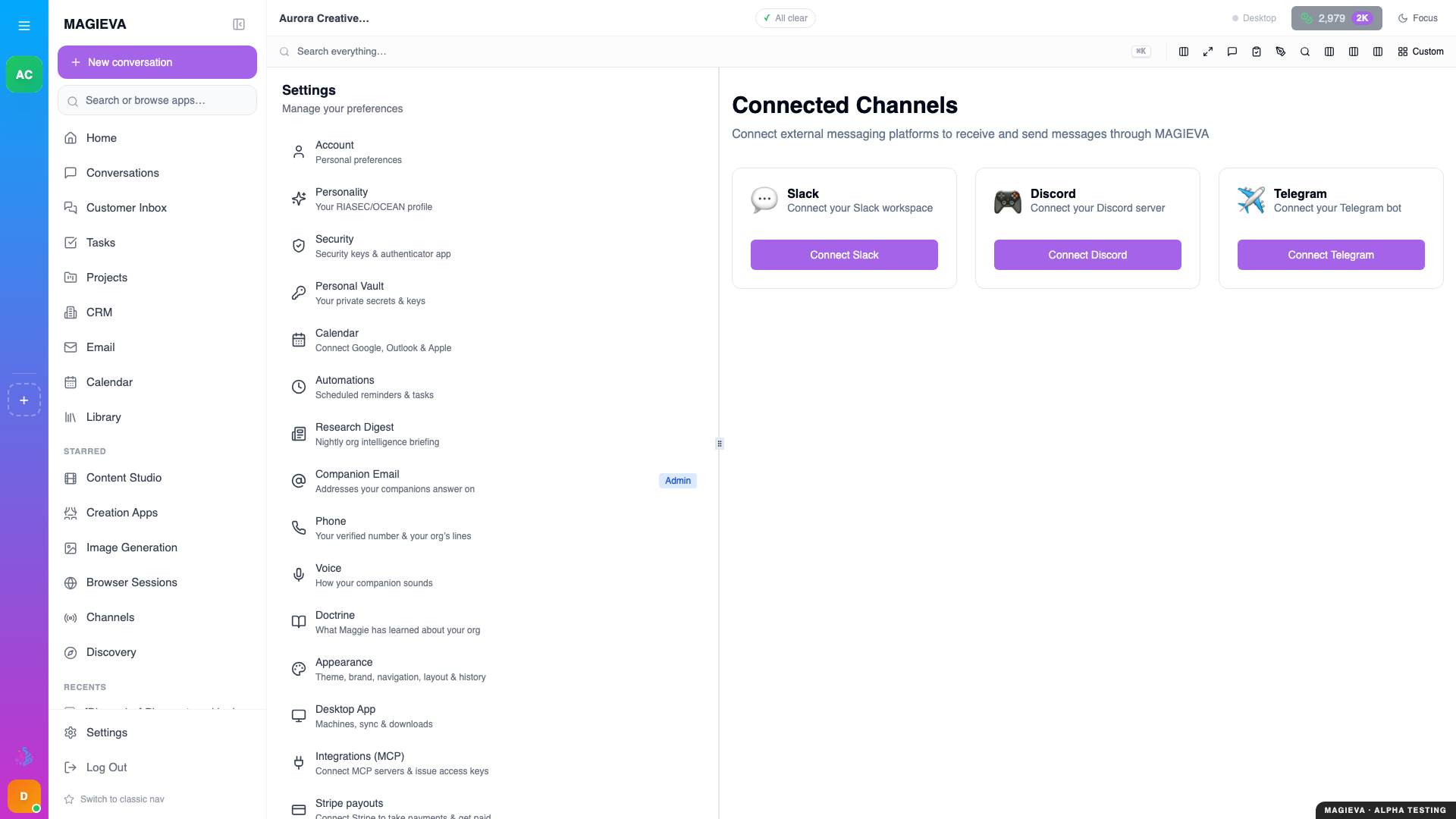
Captured 2026-09-14 on staging.magieva.com at /settings/channels, 1920×1080, in the documentation organization.
Set up under Channels. Once connected, messages from that channel reach Maggie and her replies go back to it, so colleagues who live in chat all day never have to switch.
Step 5 — Add an MCP server
For tools that speak the Model Context Protocol, go to Settings → MCP and add the server.
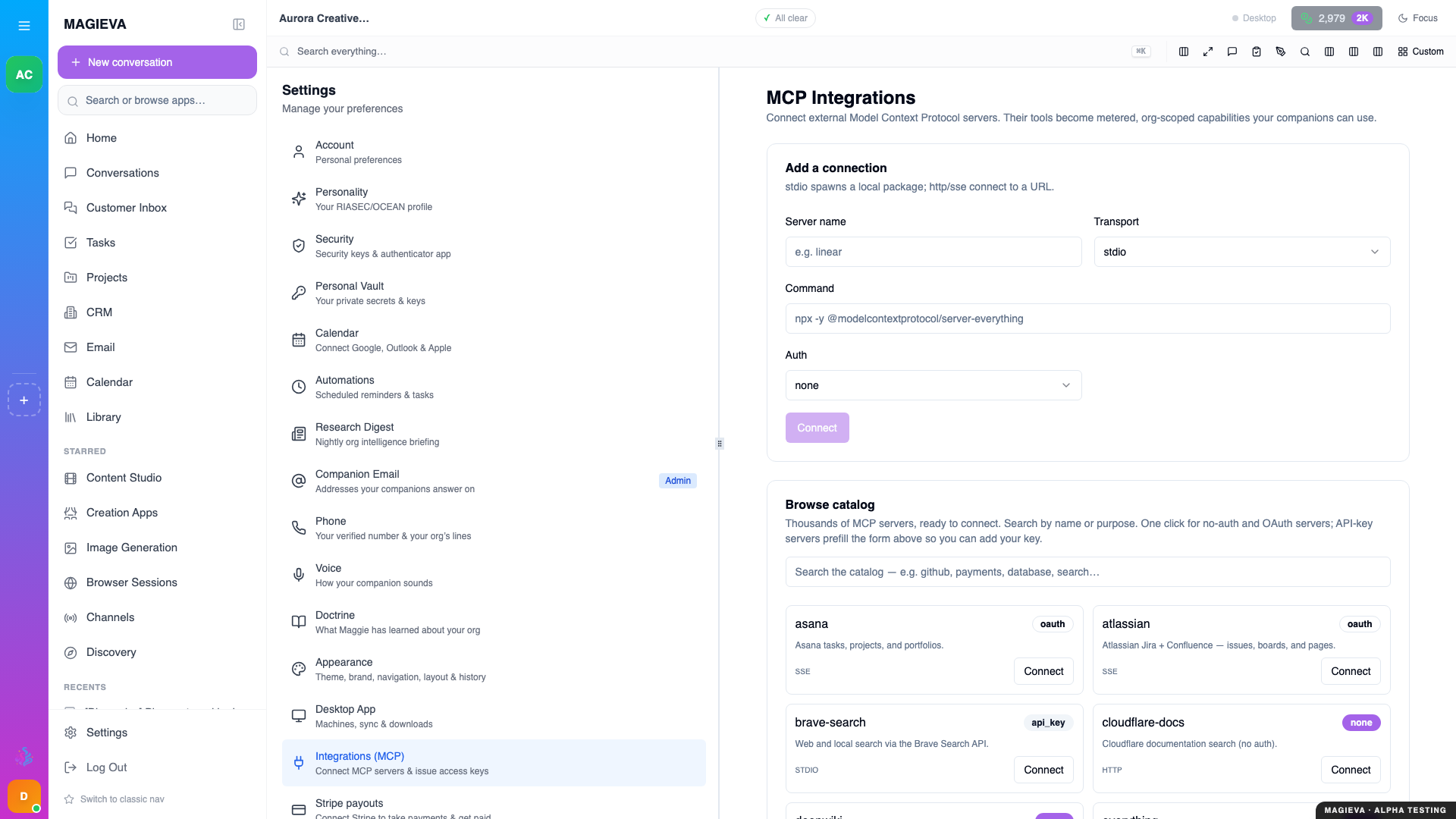
Captured 2026-09-14 on staging.magieva.com at /settings/mcp, 1920×1080, in the documentation organization.
Magieva indexes a large directory of public MCP servers for discovery, but only a small number are verified. Verified means we have vetted the server. Everything else is listed so you can find it — not because we vouch for it. Review an unverified server before you connect it, exactly as you would any third-party tool that is about to read your data.
Step 6 — Keep connections healthy
Connections expire. Providers revoke tokens, passwords change, and administrators remove apps.
When that happens the integration is flagged as needing reconnection, and Maggie will tell you she cannot reach it rather than quietly returning nothing. Go back to Integrations and reconnect.
If answers that used to cite a tool suddenly stop doing so, check here first.
Step 7 — Disconnect cleanly
Disconnecting from Integrations stops Magieva using the account. If you want to be thorough — and you should be, when someone leaves — also revoke Magieva's access from the other provider's own security settings. Doing only one side leaves a grant in place that nobody is watching.
Common mistakes
Connecting a personal account for organization-wide work. It works until you go on holiday or leave.
Approving narrow scopes then expecting broad answers. If you declined calendar access, she cannot see your calendar.
Assuming Channels and Integrations are the same thing. They solve opposite directions of the same problem.
Where to go next
- Your organization and its people — who is allowed to connect what.
- Understanding Intelligence Tokens — what connected-tool work costs.