Find and organise your files in the Library
Goal
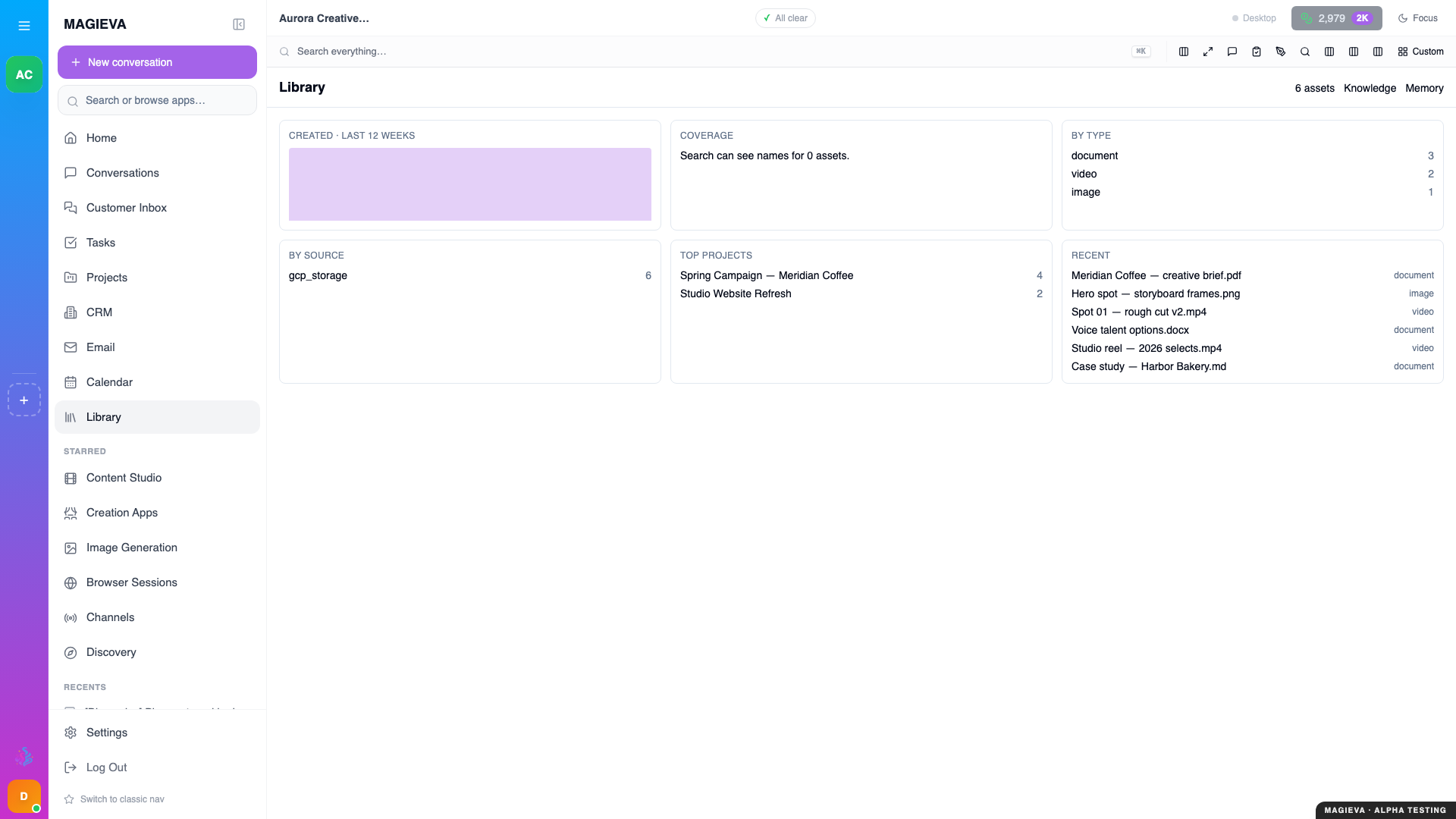
Captured 2026-09-14 on staging.magieva.com at /library, 1920×1080, in the documentation organization.
New in release 26.37
Live since September 10, 2026. The redesigned Library — lenses, six views, saved views, the inspector, region edits and the coverage line — shipped with this release.
Find any file, knowledge base or memory your organization holds, look at the same set of things from the angle that suits the job, and keep the views you use most.
Before you start
- You see what you have access to. Files shared with you or your groups appear alongside your own.
The three lenses
Open Library from the sidebar. The lens selector switches what you are looking at:
- Assets — files: images, video, audio, documents, generated output.
- Knowledge — your knowledge bases, with an Ask a question… box that answers from them and cites the passages it used.
- Memory — what your companion remembers about your organization.
Your filter, selection and the item you had open carry across when you switch lens or view.
Steps — search
- Click the search box (or press ⌘K).
- Type words, or use qualifiers to narrow precisely:
type:image,project:launch,has:transcript,before:2026-08. They combine. - Turn on Semantic search to rank by meaning as well as by the words — useful when you remember what a file was about but not what it was called.
- Read the coverage line under the results. It tells you how many of your files currently have readable text, descriptions or transcripts. A file that has not been described yet cannot be found by description, so an empty result is never a mystery.
Steps — change the view
Press 1–6 or use the view switcher:
| View | Use it for |
|---|---|
| Overview | What you have, at a glance |
| Grid | Thumbnails — visual material |
| Table | Sortable columns — dates, sizes, owners |
| Timeline | When things were made |
| Matrix | Counts: projects across, file types down |
| Graph | How things connect — a file to its project, task, conversation and knowledge base. Open as list turns any node into the same scope in the table. |
The navigator on the left narrows by Projects, Sources, Models, Time, Health and Collections.
Steps — keep a view
- Set up the lens, filter and view you want.
- Open Views → Saved views and choose Name this view….
- Give it a name. It is kept per lens, and you can open, share or delete it later from the same menu.
Steps — inspect a file
Select a file to open the Inspector:
- Overview — name, type, size, origin, status, description and its connections.
- Connections — the project it was filed in, the task that produced it, the conversation it came from, the knowledge base it feeds. Each is a link.
- Activity — views, downloads and references, plus its version history.
Open the file itself and you get the same viewer you already use in chat, with that file's own conversation pinned beside it.
Steps — act on many at once
Filter to the set you mean, choose Select all matching, then Archive. The count updates immediately and the job runs in the background.
Steps — edit part of an image
- Open an image and choose Region edit.
- Drag a rectangle over the area to change, then describe the change — for example "make the sky a deep sunset orange".
- The result is saved as a new version linked to the original, so the before-and-after is always recoverable. Region edits use Intelligence Tokens.
Verify it worked
A saved view appears under Saved views for that lens, and reopening it restores the lens, filter and view exactly.
Troubleshooting
| Problem | What to do |
|---|---|
| A file I know exists does not match my search | Check the coverage line: it may not have a description or transcript yet. Search by name or type, or wait for enrichment to finish. |
| Semantic search returns nothing | It only sees files that have been described. The coverage line shows how many that is. |
| The Matrix or Graph button is disabled | It says why on hover — usually the current scope has no projects or dated items to lay out. |
| I ended up on an older Resources or Assets page | Those pages are being retired in favour of the Library; use Library from the sidebar. |
Related
- The Library — your files, knowledge and memory in one place
- Ask Maggie to find something you own
- Understanding Intelligence Tokens