Groups: teams you can run, and one way to share
Goal
New in release 26.37
Live since September 10, 2026. Nested groups, archive and restore, companions as group members, the single Share dialog and @group mentions shipped with this release.
Organise people and companions into groups that mirror how you actually work, then share projects, files and conversations with a group in one step instead of person by person.
Before you start
- Creating and editing groups needs administrator rights in the organization.
- Sharing an item needs you to own or administer that item.
- Companions must already exist in your organization to be added to a group.
Steps — create a group
- Open Groups from the sidebar. You land on the Groups page: every group in the organization, with a search box and Active / Archived filters.
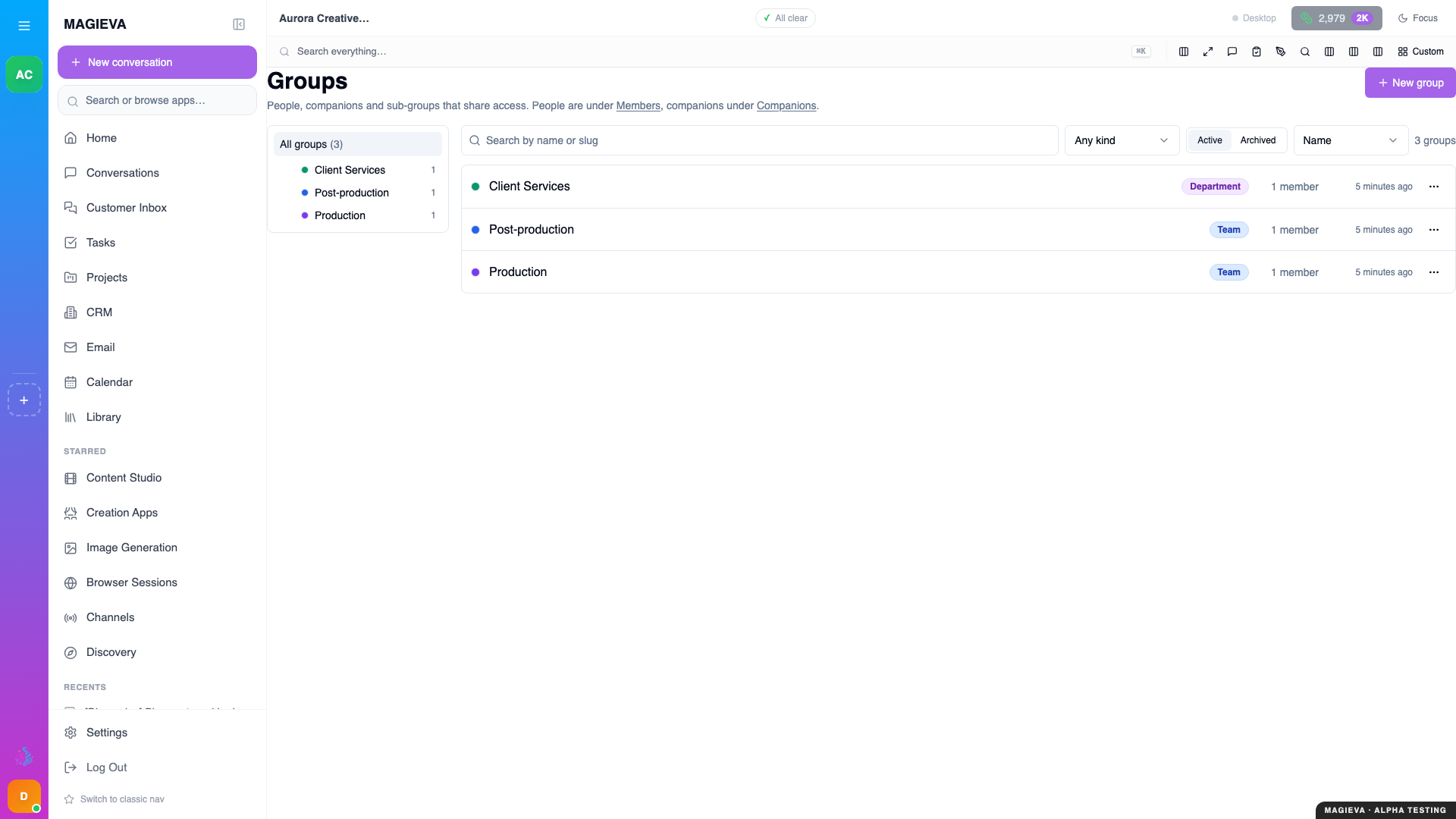
Captured 2026-09-14 on staging.magieva.com at /groups, 1920×1080, in the documentation organization.
- Choose New group (top right, or in the empty state).
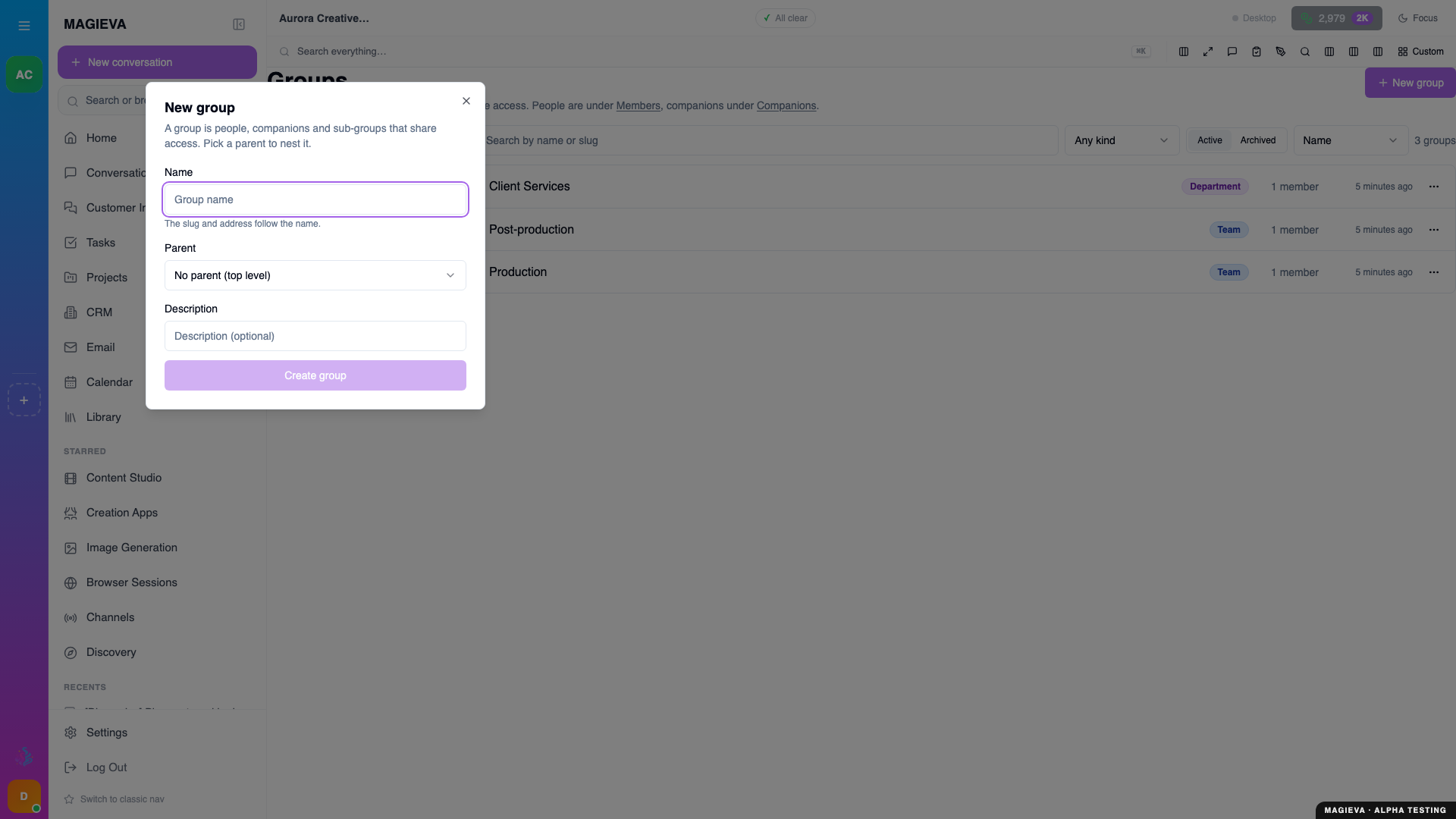
Captured 2026-09-14 on staging.magieva.com at /groups, 1920×1080, in the documentation organization.
- Give it a name, an optional description and a colour.
- Pick a type: Department, Team, Project, Role or Mixed. The type is a label that helps people find the right group; it does not change what the group can do.
- Choose a parent group, or leave No parent (top level). Groups nest: a Team can live inside a Department, and a Project inside either. Access granted to a parent flows down to its sub-groups.
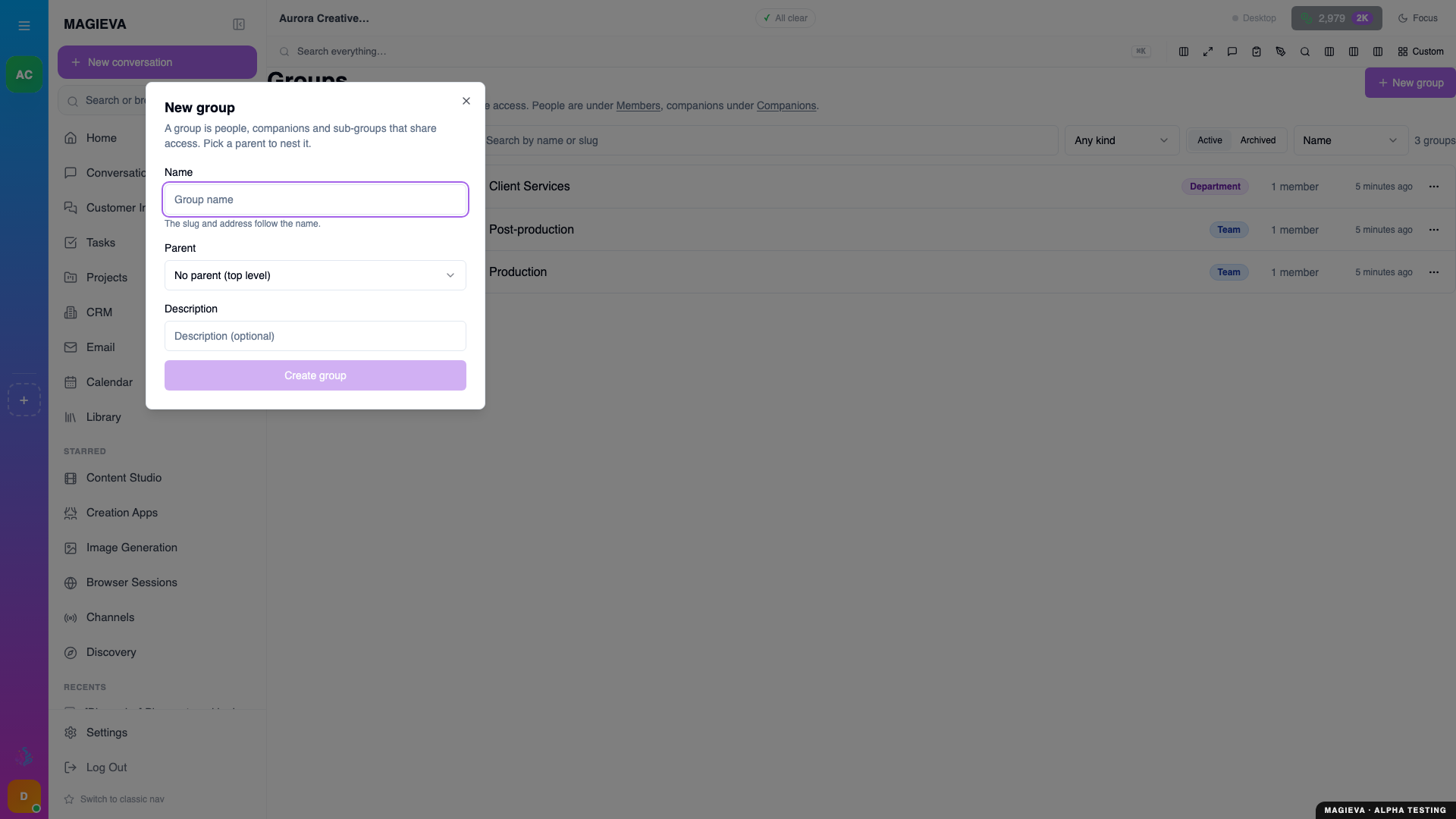
Captured 2026-09-14 on staging.magieva.com at /groups, 1920×1080, in the documentation organization.
- Save, then add members: search people and add them, and search companions and add them. A companion in a group receives the same access the group has, so a "Finance" group can include the companion that does your reconciliations.
- Set each member's role inside the group where it matters.
Steps — archive and restore
- Open a group and choose Archive when it is no longer needed. Its members stop receiving access through it, and nothing is deleted.
- An archived group can be brought back with Restore; members and grants return exactly as they were.
Steps — share something with a group (or a person, or a companion)
- On a project, a file in the Library, or a conversation, open its menu and choose Share.
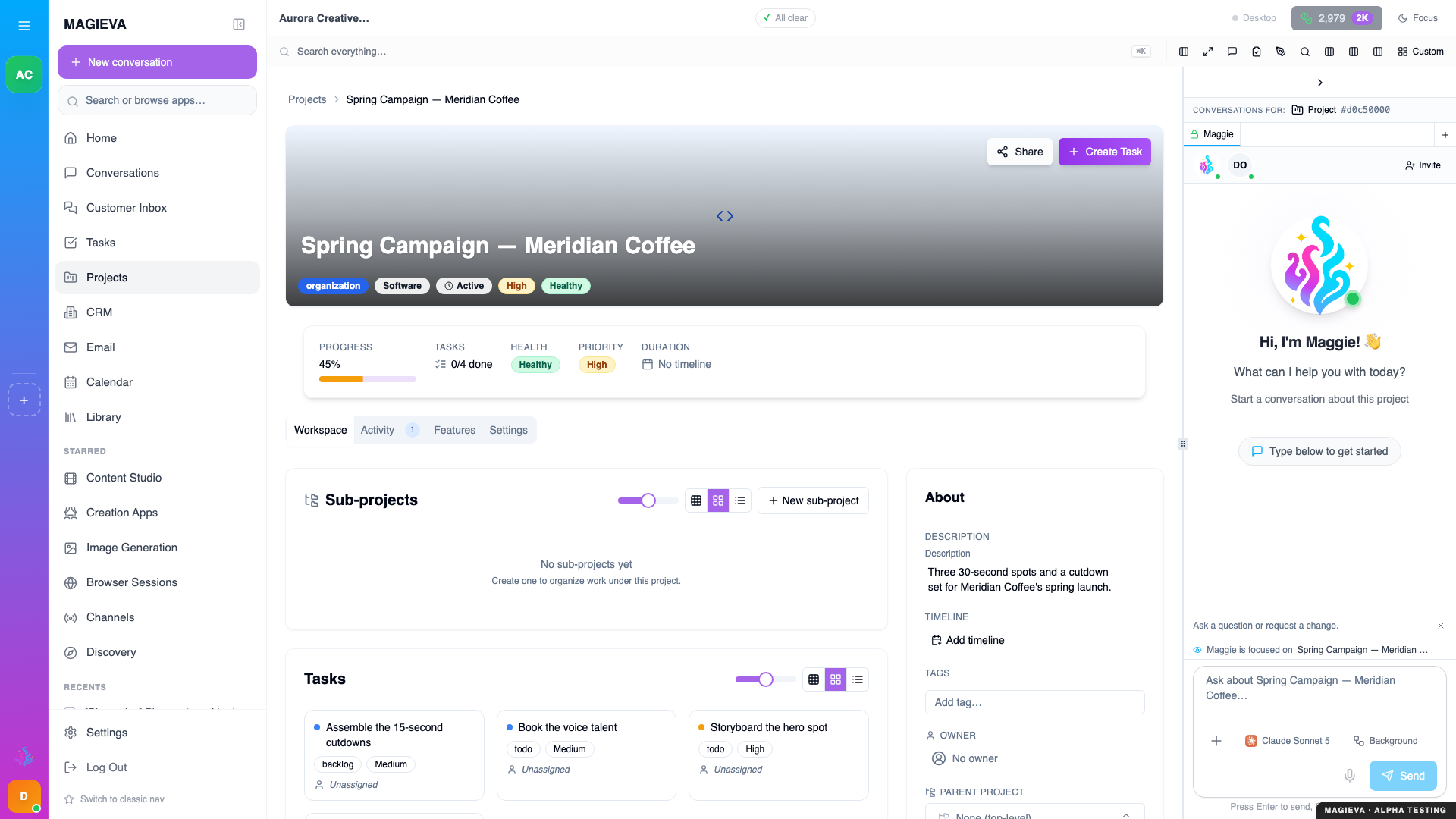
Captured 2026-09-14 on staging.magieva.com at /projects/d0c50000-0000-4000-8000-000000000101, 1920×1080, in the documentation organization.
- Switch between People, Groups and your companions, then search by name.
- Choose a role: Admin, Editor, Commenter, Viewer — or No access to explicitly block someone who would otherwise inherit access.
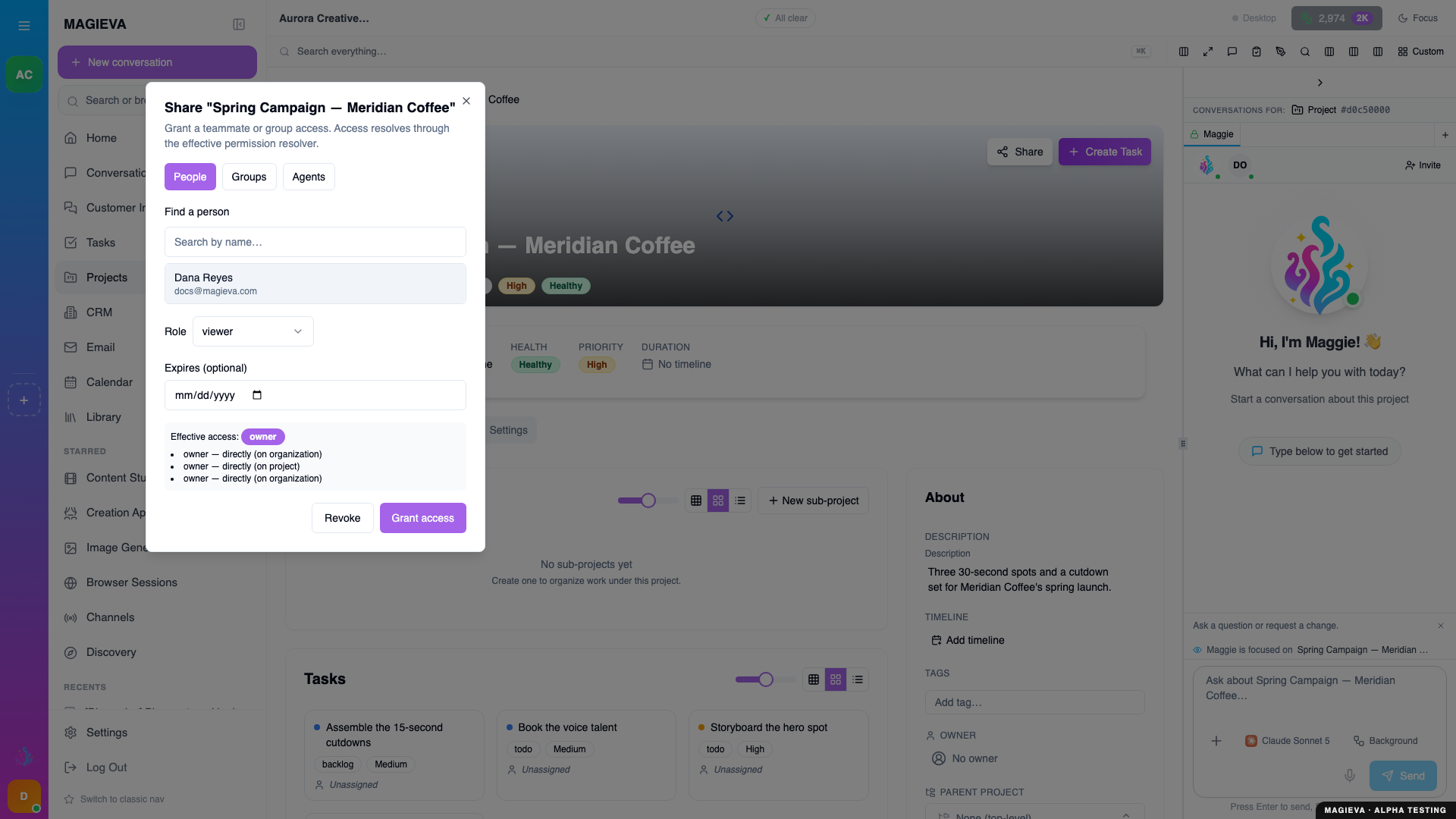
Captured 2026-09-14 on staging.magieva.com at /projects/d0c50000-0000-4000-8000-000000000101, 1920×1080, in the documentation organization.
- Optionally set an expiry. Time-boxed access is the right default for contractors and one-off reviews.
- Confirm. The dialog lists existing grants on the item, and you can revoke any of them from the same place.
The same dialog appears everywhere sharing is offered, so there is one set of roles to learn.
Steps — see and revoke what a group has been given
Open the group. The Shared with this group panel lists every project, file and conversation the group has access to, with the role. Revoke from there when a group's remit changes; the change applies to every member at once.
Steps — mention a whole group in chat
Type @ in any conversation and pick a group. The mention expands to the group's current active members, so "@Design please review this" reaches everyone in Design today — and next month, whoever is in Design then.
Verify it worked
- The group appears on the Groups tab with its member count, and its activity list shows the members you added.
- Someone in the group can open the shared item at the role you chose; someone outside it cannot.
Troubleshooting
| Problem | What to do |
|---|---|
| A person cannot see something shared with their group | Check the group is not archived, and that the person is an active member. Access is evaluated live, so a fix takes effect immediately. |
| Share is missing from an item's menu | You need to own or administer that item. Ask its owner to share it or to make you an Admin on it. |
| The group list looks wrong after switching organizations | Groups are per organization. Confirm the organization selector shows the one you expect. |
Related
- Your organization and its people
- Follow what is happening across your organization